Finding your way around
2 min read
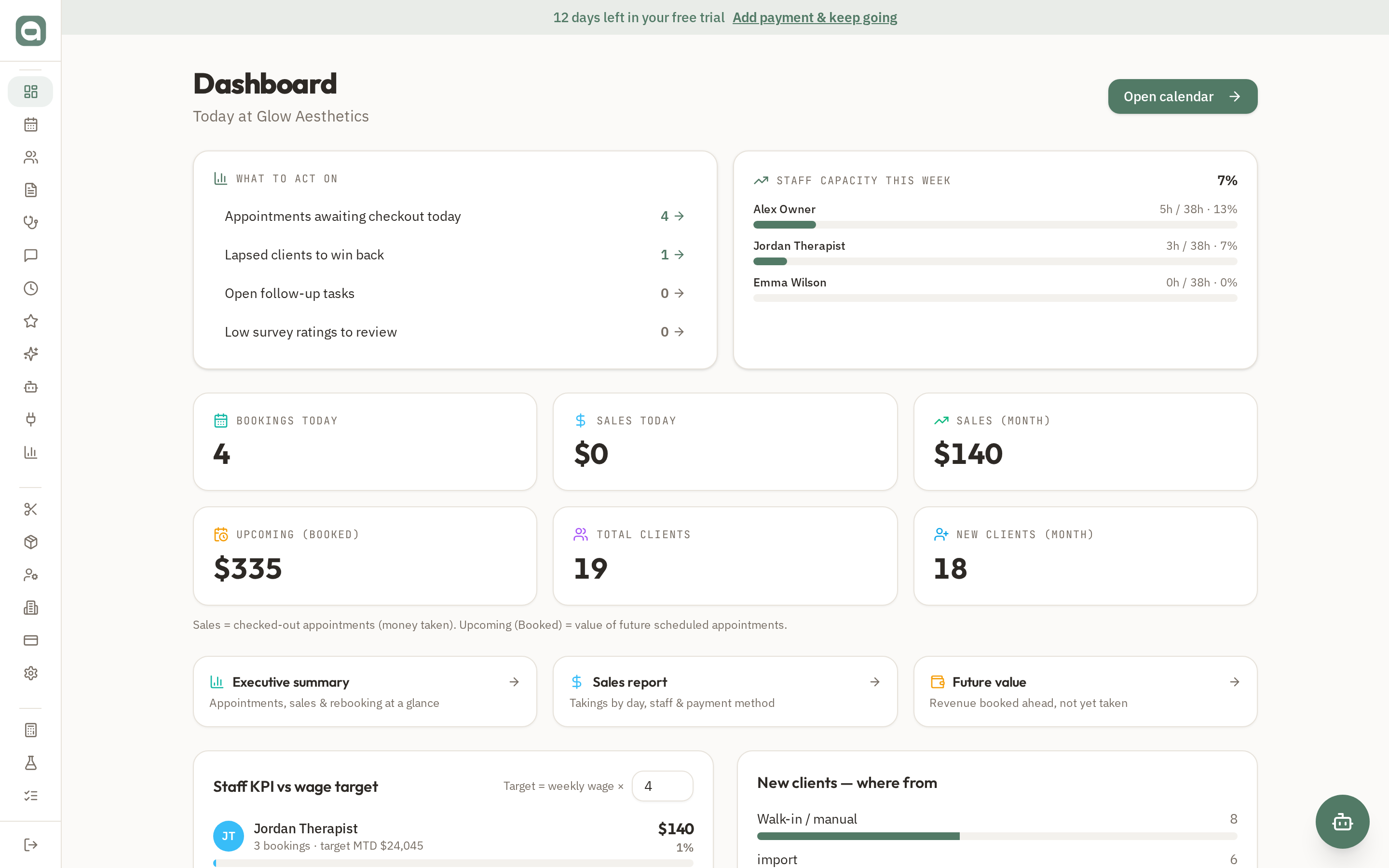
Azordi keeps a slim icon rail down the left so your screen stays focused on the work. Hover it to see full labels.
Step by step
- 1The left rail shows an icon for every page. Hover over it and it expands to reveal labels grouped as Manage, Setup and Cost Tools.
- 2Move your mouse away and it collapses back to icons — giving you maximum room for your calendar and client records.
- 3On mobile, tap the menu button in the top bar to open the full navigation drawer.
- 4Your name, role and Sign out live at the bottom of the expanded menu.
Tips
- What you see in the menu depends on your role — owners and admins see everything; staff and reception see the pages relevant to them.