
Calendar & bookings
5 min read
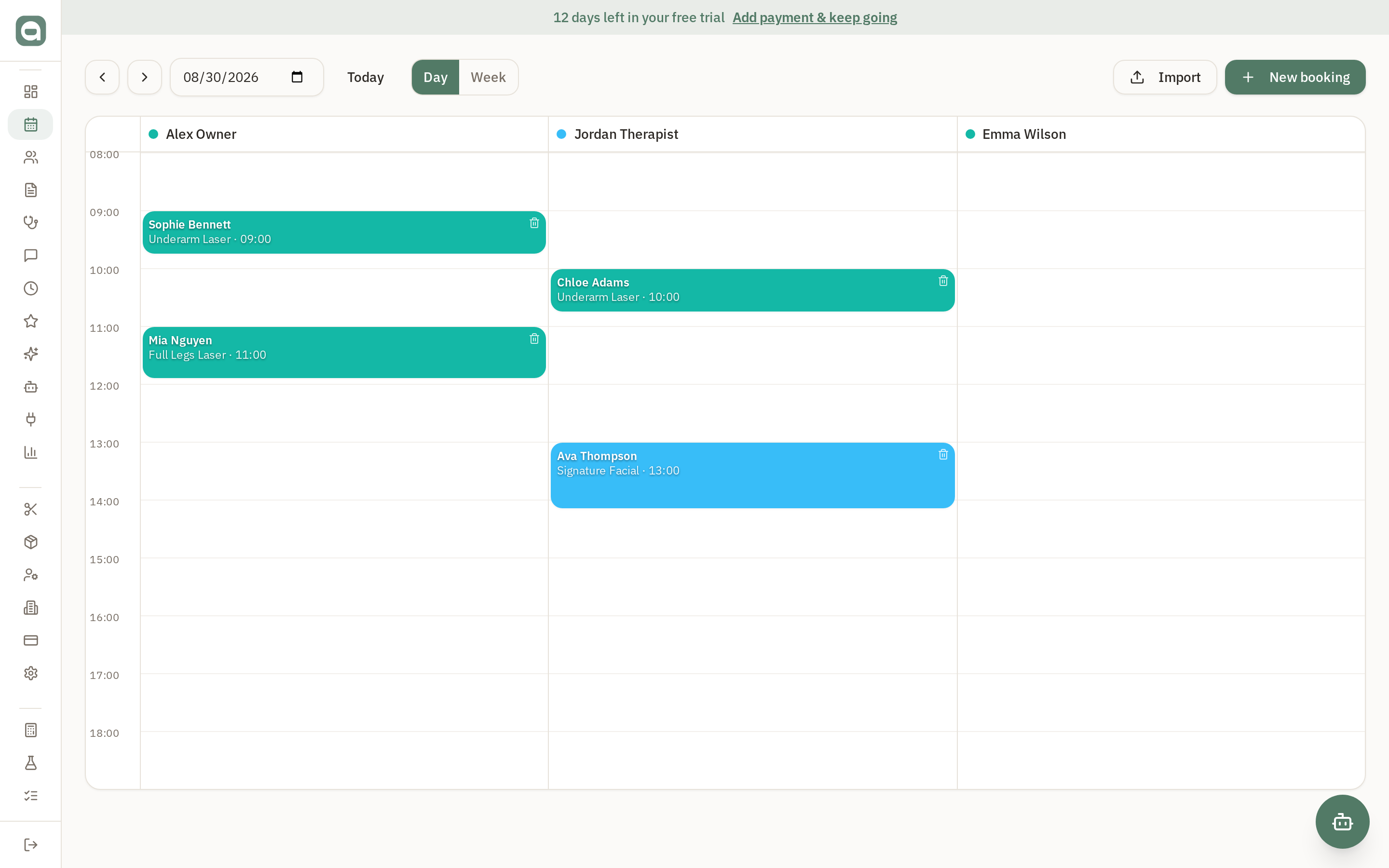
The Calendar is where your day happens. Each staff member gets a colour-coded column; drag, click and check out from one screen.
Step by step
- 1Use Day / Week toggle and the arrows (or the date picker) to move around. 'Today' jumps back to now.
- 2Click 'New booking' to add an appointment — pick the client, service, staff member and time. Overlaps are blocked automatically.
- 3Click an existing booking to open it, where you can reschedule, cancel, take a deposit, or check the client out.
- 4To repeat a booking, turn on recurrence and choose the frequency and how many times (or an end date). Rescheduling shifts the future occurrences too.
- 5Have historical bookings elsewhere? Use 'Import' to bring in a CSV of appointments — clients, services and staff are matched automatically.
Tips
- A star or alert icon on a booking card flags VIPs and medical alerts before the client even arrives.
- Marking an appointment 'Arrived' is the safety checkpoint — medical alerts must be acknowledged here.