
Staff & permissions
4 min read
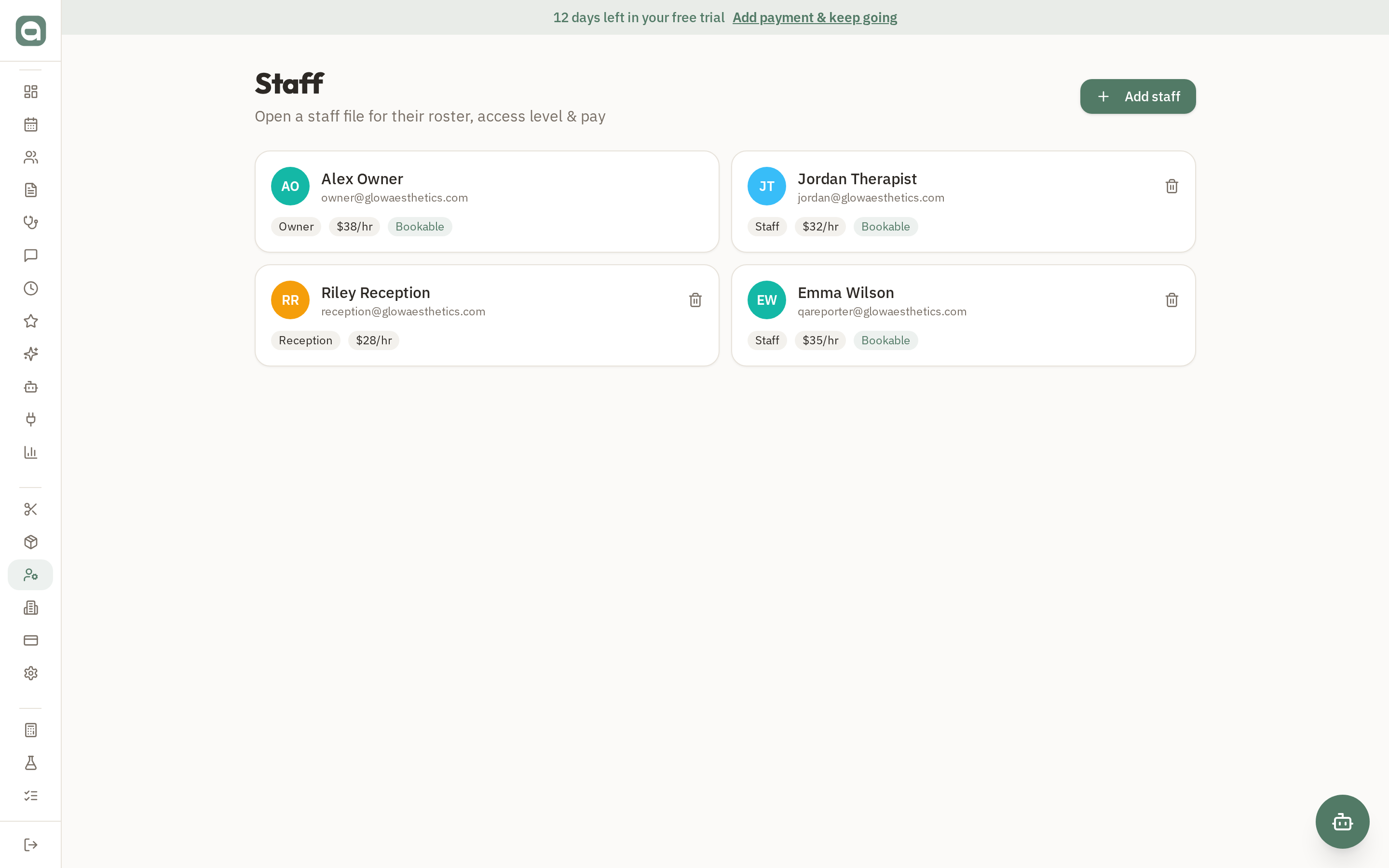
Each team member has a full staff file with Roster, Access and Pay tabs so you control exactly what they can do and see.
Step by step
- 1Open Staff and add a team member with their role (owner, admin, reception or staff).
- 2In the Roster tab set their working days and hours — this drives their availability on the calendar.
- 3In the Access tab, grant or restrict fine-grained permissions like view dashboard, view reports, give discounts, edit clients and manage inventory.
- 4In the Pay tab, record wages and profit-share settings used in reporting.
Tips
- Owners and admins always have full access. For others, permissions layer on top of their role — great for giving one receptionist reporting access, for example.