
Surveys & Google reviews
3 min read
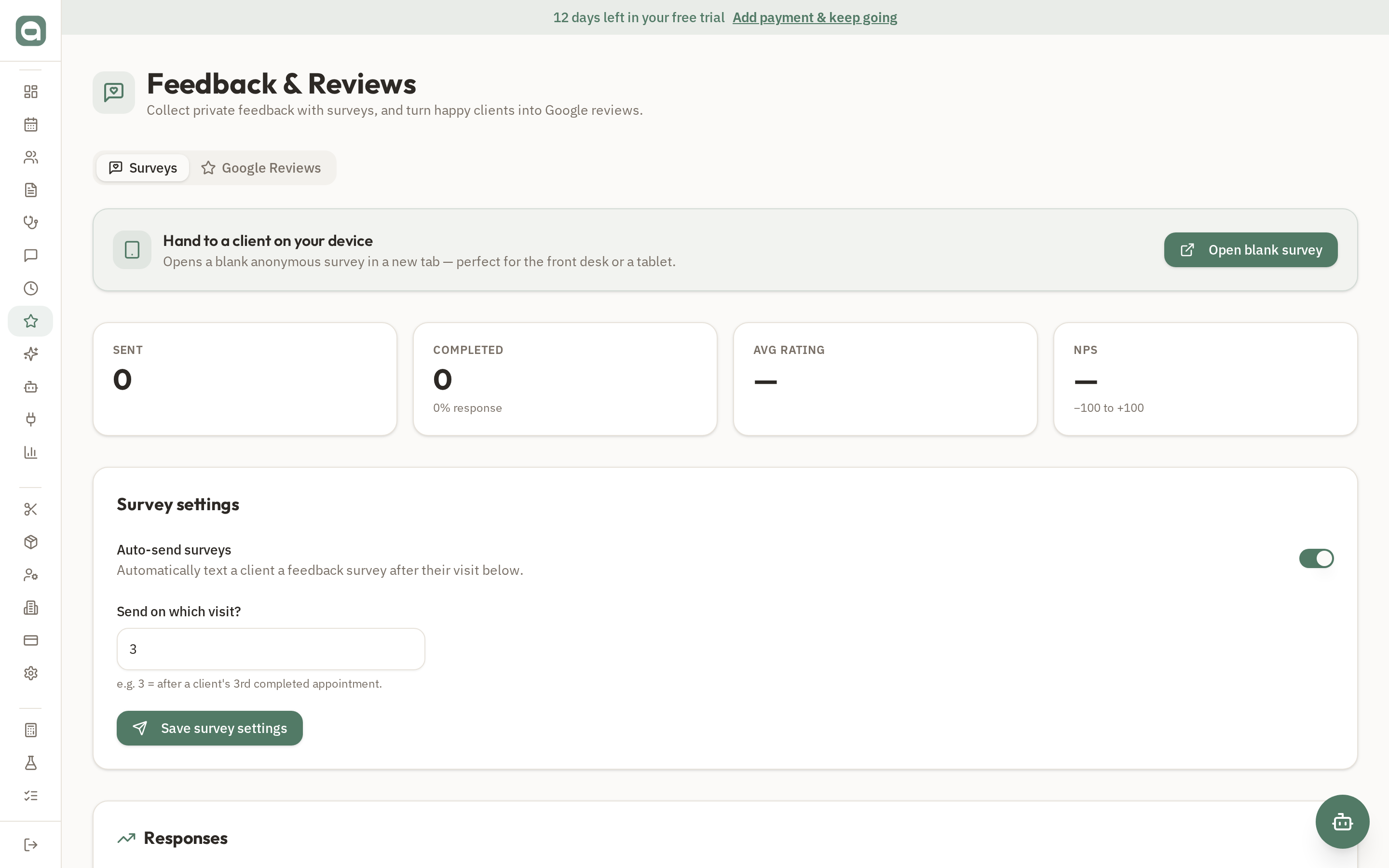
The Feedback page has two tabs: Surveys (private feedback) and Google Reviews (public reputation). Happy clients get nudged to review; unhappy feedback stays private so you can fix it.
Step by step
- 1Surveys auto-send by SMS after a client's third checked-out appointment — no manual work.
- 2Clients who score you highly (4–5/5) are shown your Google review link; lower scores stay private for your eyes only.
- 3Set your Google review link and score threshold in the Google Reviews tab.
- 4For in-clinic use, tap 'Open blank survey' to launch an anonymous kiosk survey in a new tab on your reception iPad.
Tips
- Abandoned kiosk surveys are excluded from your response-rate stats, so your numbers stay accurate.